
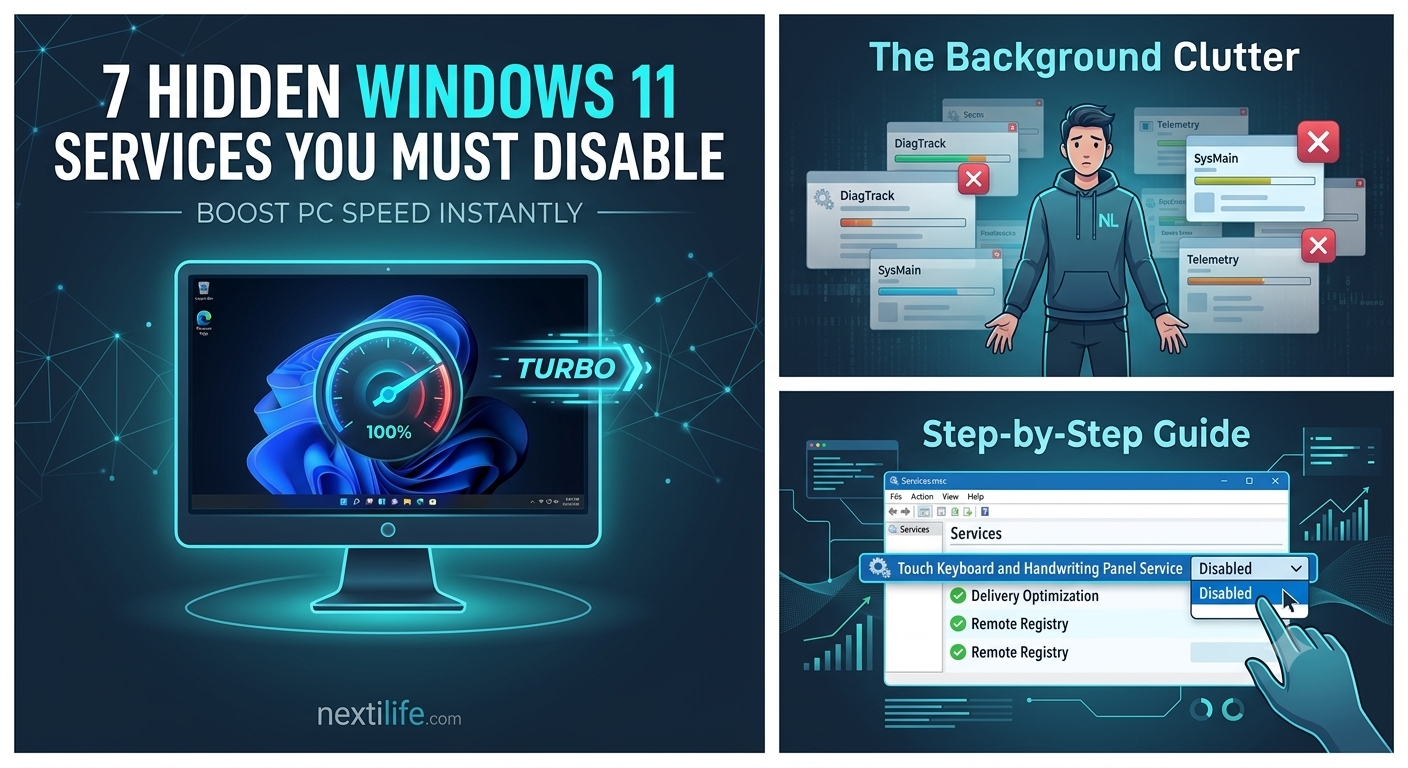
Looking for ways to speed up Windows 11 on your PC or laptop? Is your system lagging during multitasking or showing high CPU and RAM usage? You are not alone. In fact, millions of Windows 11 users face severe performance drops simply because Microsoft keeps dozens of background services running by default.
While most online guides give you basic advice like “clear temporary files” or “restart your PC,” they miss the core issue. Specifically, the real problem comes from hidden background services.
In this comprehensive guide, we will uncover 7 hidden, resource-heavy Windows 11 services. Therefore, you can safely disable them today to boost your system speed, lower latency, and free up valuable RAM.
7 Hidden Services to Disable to Speed Up Windows 11
1. Connected User Experiences (Disable to Speed Up Windows 11)
Microsoft uses this service to collect system diagnostics, usage data, and user activity to send back to their servers. Consequently, while intended for software improvement, it constantly consumes disk I/O, CPU cycles, and network bandwidth in the background.
- Impact: High Disk Usage and Constant Background Activity.
- Safe to Disable? Yes, unless you are actively enrolled in the Windows Insider Program.
How to Disable:
- First, press
Win + R, typeservices.msc, and hit Enter. - Next, scroll down and find Connected User Experiences and Telemetry.
- After that, double-click it and change the Startup type to Disabled.
- Finally, click Stop under Service status, then click Apply and OK.
2. Windows Search (If You Use an SSD)

If your operating system is installed on a modern Solid-State Drive (SSD), the Windows Search Indexer is often unnecessary. Because SSDs are already very fast, continuously scanning and indexing your files in the background causes unnecessary drive reads and processing.
- Impact: High CPU usage and unnecessary SSD read/write cycles.
- Safe to Disable? Yes, especially if you do not search through millions of files via the Taskbar.
How to Disable:
- First, open
services.msc. - Next, locate Windows Search.
- Finally, change the Startup type to Disabled or Manual, then click Stop.
3. SysMain (Formerly Superfetch)
SysMain is designed to preload frequently used applications into your RAM to speed up launch times. However, on systems with high-speed NVMe SSDs or limited RAM (8GB or less), SysMain often causes 100% Disk Usage bugs and severe system stuttering.
- Impact: Constant disk activity and sudden memory spikes.
- Safe to Disable? Absolutely, especially for SSD users and gamers experiencing random frame drops.
How to Disable:
- Open
services.msc. - Find SysMain, then double-click it.
- Set the Startup type to Disabled, click Stop, and save changes.
4. Touch Keyboard and Handwriting Panel Service
Unless you are using a 2-in-1 touchscreen laptop or a Windows tablet with a stylus, this service is completely useless. Nevertheless, Windows 11 keeps it running in the background on desktop PCs and standard laptops at all times.
- Impact: Wasted background memory (RAM).
- Safe to Disable? Yes, for all non-touchscreen devices.
How to Disable:
- Open
services.msc. - Scroll to Touch Keyboard and Handwriting Panel Service.
- Set Startup type to Disabled and click Stop.
5. Xbox Accessories (Disable to Speed Up Windows 11)
Windows 11 comes deeply integrated with Xbox gaming services out of the box. However, if you do not play PC games using an Xbox controller or use the Xbox app, these background services serve no purpose. Instead, they only consume system resources.
- Key Services to Target:
- Xbox Accessory Management Service
- Xbox Live Auth Manager
- Xbox Live Game Save
- Safe to Disable? Yes, if you are a non-gamer or only use Steam without Xbox integration.
6. Delivery Optimization to Speed Up Windows 11
Windows Update Delivery Optimization allows your PC to send downloaded Windows update parts to other PCs on your local network. As a result, this essentially turns your PC into a peer-to-peer update node, which slows down your internet connection and background bandwidth.
- Impact: High background internet consumption and high disk usage.
- Safe to Disable? Yes, completely safe.
How to Disable via Settings:
- First, go to Settings > Windows Update > Advanced Options.
- Next, click on Delivery Optimization.
- Finally, toggle Allow downloads from other PCs to OFF.
7. Remote Registry (Disable for Windows 11 Speed)
This service allows remote users to modify the Windows Registry settings on your computer over a network. Therefore, leaving this active is not only a performance waste but also a potential security risk for personal computers.
- Impact: Unnecessary network footprint and security vulnerability.
- Safe to Disable? Yes, highly recommended for personal home PCs.
How to Disable:
- In
services.msc, locate Remote Registry. - Set Startup type to Disabled and click Stop.
Final Thoughts: Best Practices to Speed Up Windows 11
In conclusion, by disabling these 7 unnecessary background services, you can reclaim lost RAM, prevent unexpected high CPU usage, and enjoy a significantly smoother computing experience.
Moreover, make sure to restart your computer after applying these settings so that Windows can process the changes cleanly!
Disclaimer: Always create a System Restore Point before making changes to Windows system services.